> ## Documentation Index
> Fetch the complete documentation index at: https://dripart-docs-lora-training-1772768349.mintlify.site/llms.txt
> Use this file to discover all available pages before exploring further.
# Links
> Understand connection links in ComfyUI
## Links connect nodes
In ComfyUI, the lines or curves drawn between nodes are called ***links*** (also referred to as ***connections*** or wires). They carry data from one node's output to another node's input, defining the flow of your workflow.
Links can be displayed in several visual styles: curves, right angles, straight lines, or hidden entirely.
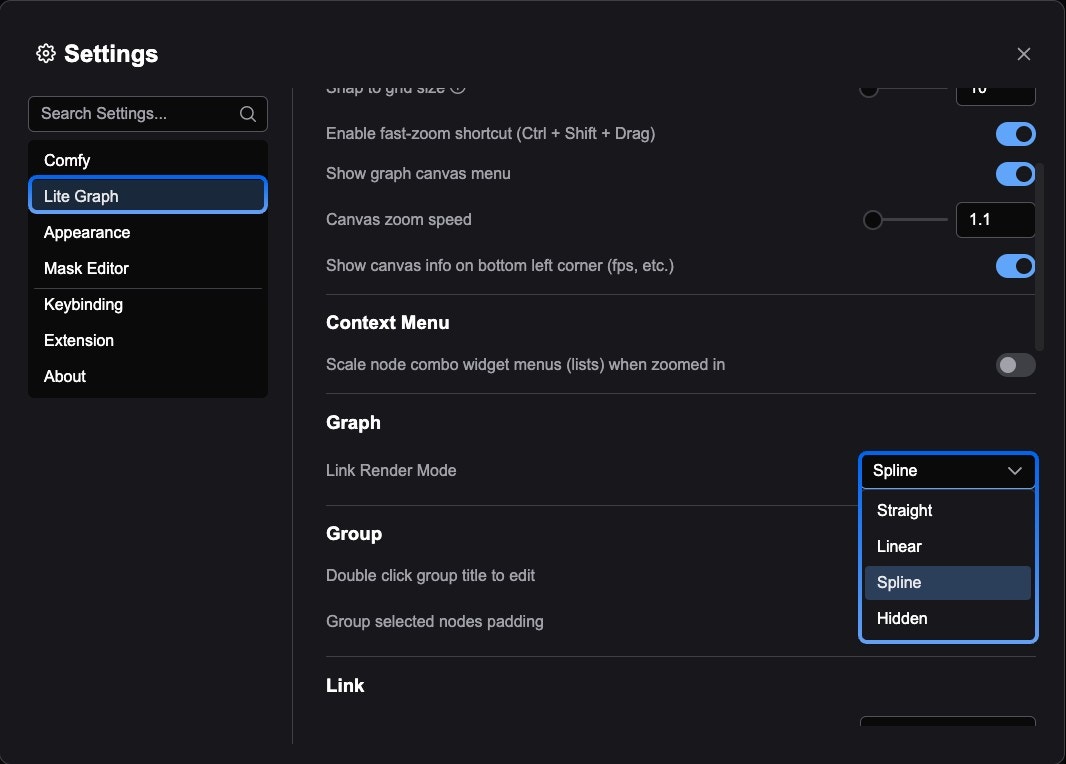
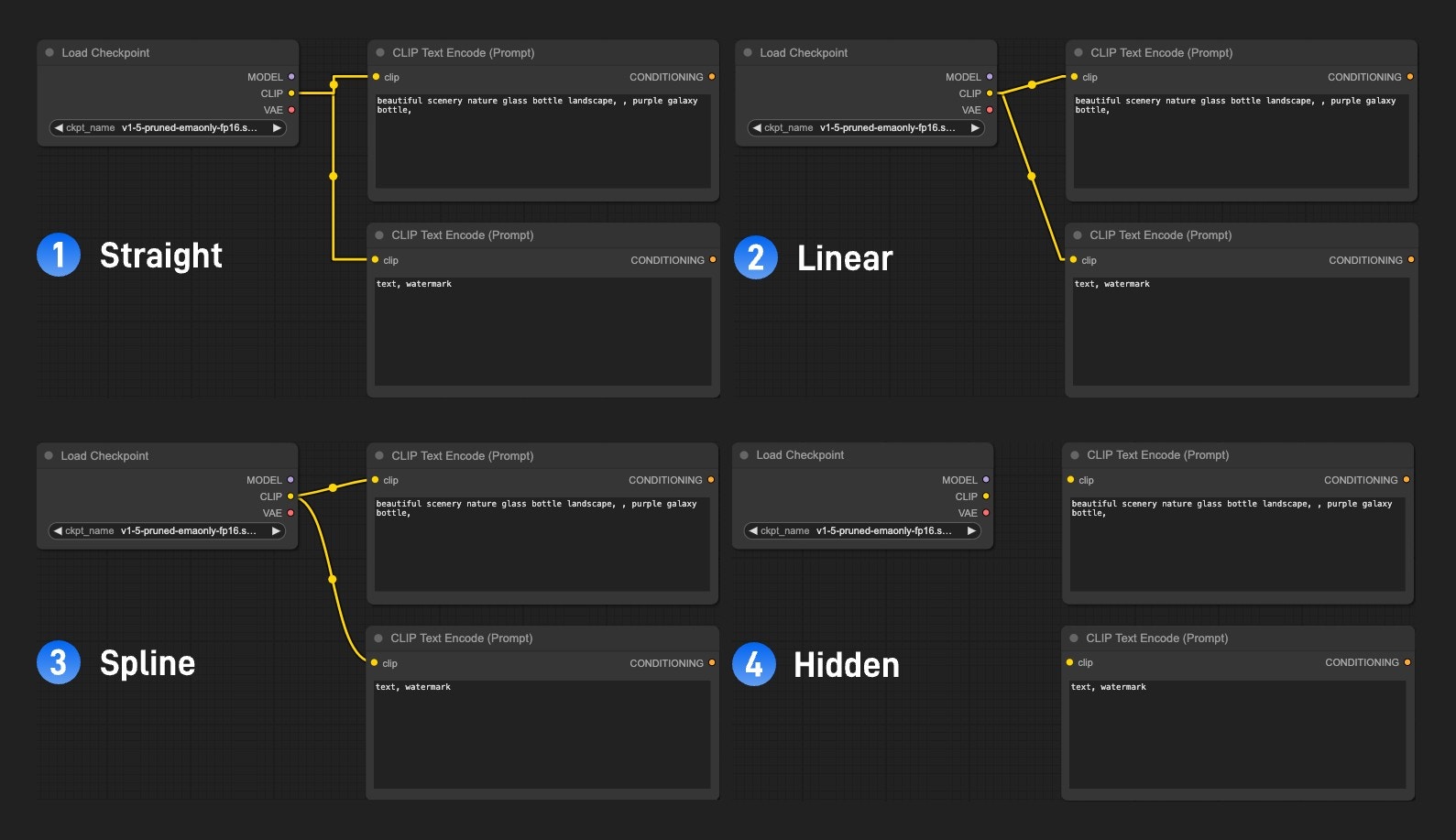 To change the link style, go to **Setup Menu** → **Display (Lite Graph)** → **Graph** → **Link Render Mode**.
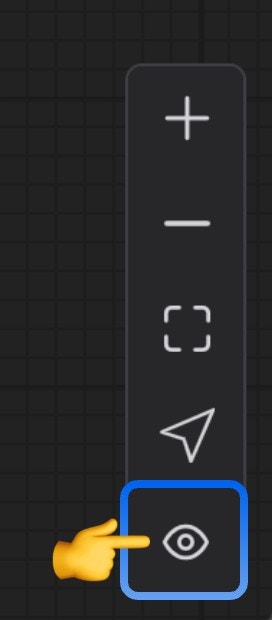
 You can also temporarily hide all links from the **Canvas Menu**.
 Showing links is especially useful when learning, sharing, or debugging a workflow — they make the data flow visible at a glance. For finished workflows that aren't meant to be edited, hiding links can reduce visual clutter.
### Reroute node
When a workflow becomes complex, link wires can overlap or pass behind nodes, making it hard to read. The **Reroute** node lets you manually redirect a wire through any point in the 2D graph space, keeping the layout clean and legible.
Showing links is especially useful when learning, sharing, or debugging a workflow — they make the data flow visible at a glance. For finished workflows that aren't meant to be edited, hiding links can reduce visual clutter.
### Reroute node
When a workflow becomes complex, link wires can overlap or pass behind nodes, making it hard to read. The **Reroute** node lets you manually redirect a wire through any point in the 2D graph space, keeping the layout clean and legible.
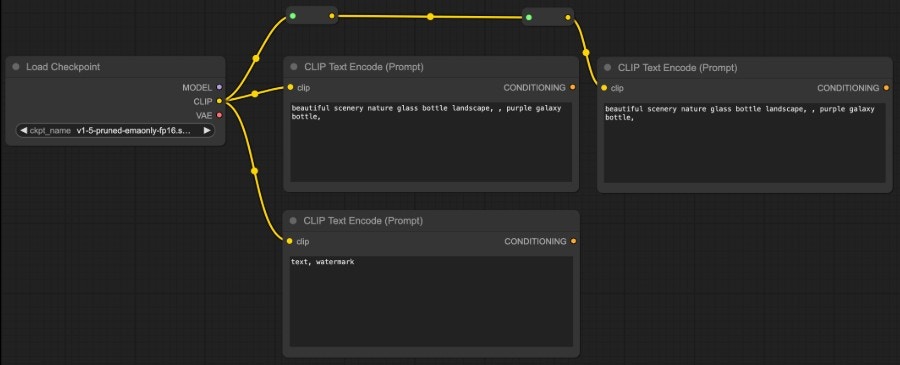 ComfyUI also has a built-in native reroute feature in the graph canvas. We recommend using this for new workflows.
 ## Color-coding
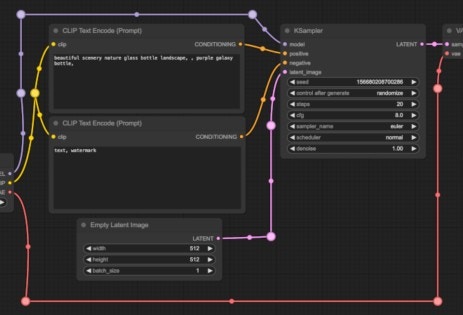
Every data type in ComfyUI has a distinct color. Node input and output ports, as well as the link wires connecting them, all share this color scheme. **You can only connect ports of the same color** — this ensures type safety across your workflow.
## Color-coding
Every data type in ComfyUI has a distinct color. Node input and output ports, as well as the link wires connecting them, all share this color scheme. **You can only connect ports of the same color** — this ensures type safety across your workflow.
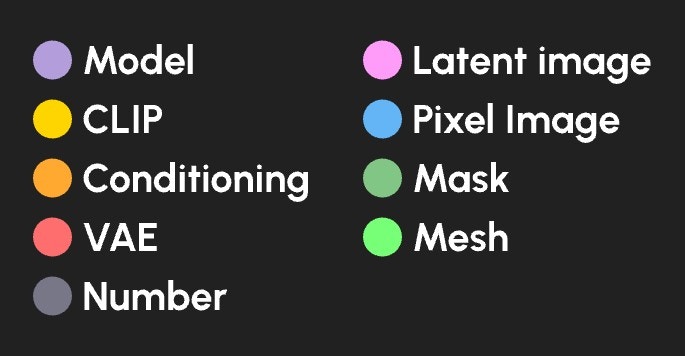 | Data type | Color |
| ------------------------- | ------------ |
| Diffusion model | Lavender |
| CLIP model | Yellow |
| VAE model | Rose |
| Conditioning | Orange |
| Latent image | Pink |
| Pixel image | Blue |
| Mask | Green |
| Number (integer or float) | Light green |
| Mesh | Bright green |
| Data type | Color |
| ------------------------- | ------------ |
| Diffusion model | Lavender |
| CLIP model | Yellow |
| VAE model | Rose |
| Conditioning | Orange |
| Latent image | Pink |
| Pixel image | Blue |
| Mask | Green |
| Number (integer or float) | Light green |
| Mesh | Bright green |